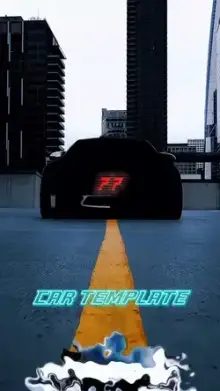
















An X Remix trend CapCut template is a beat-driven edit that cuts between short clips in time with a remix track. Most versions add speed ramps, zoom punches and a few words of text on the drops. You supply the clips, and the template supplies the rhythm, effects and music.
What Does the "X" in X Remix Mean?
In music and template titles, an "x" usually joins two things, such as two songs mixed into one track or a song paired with a name. You will often see titles written as "Song A x Song B".
In this trend, the "x" signals a remix or mashup. The audio has a strong, steady beat, and the whole template is built around it, so every cut and effect lands in time.
How the Edit Style Works
- Cuts on the beat Each clip usually lasts one to three seconds before the next one hits.
- Speed ramps A clip slows down just before a drop and snaps back to full speed on it. Editors call this a velocity edit.
- Zoom punches and shakes Quick zoom-ins on the heavy beats make the edit feel louder.
- Short text Where a version has text, it is usually a few words that pop up on a pause.
- A reveal Many versions save the biggest moment for the final drop.
It is a natural fit for TikTok-style templates, Reels and Shorts, where viewers decide in the first second whether to keep watching.
Best Clips for an X Remix Trend CapCut Template
Fast edits punish weak clips. Each one is on screen for a second or two, so it has to make sense right away.
- One strong action per clip. A jump, a turn, a ball kick, a door swinging open, a car pulling away.
- High contrast. A bright subject against a darker background reads instantly, even on a small screen.
- Action that starts early. Trim each clip so the movement begins in the first half second.
- Variety. Mix close-ups with wide shots so the cuts never feel repetitive.
Gym sessions, car shots, dance moves and sports highlights all fit this style. For more along those lines, see our gym CapCut templates and car templates.
Planning an X Remix CapCut Template Edit
The quickest way to a good X remix CapCut template edit is to plan before you film. Play the preview and count the cuts. If it has eight slots, write down eight actions you can film in a row: a walk-in, a look at the camera, a jump, a close-up of your shoes, and so on.
Film each action two or three times, then pick the cleanest take for each slot. It takes a few extra minutes, but it saves you from settling for a weak clip on the biggest beat.
Setting Up the Template
Open the version you want with the "Use Template in CapCut" button, then tap "Use template" inside the app. Select your clips in the order you want them to play, because the first one you pick fills the first slot.
Watch the whole preview once before you change anything. Then tap any slot that feels off and swap or re-trim it. When it looks right, export at 1080p if your app offers it. Our CapCut template guide explains each button, including what to do when menus look different in your app version.
Mistakes That Make a Remix Edit Feel Flat
- Using long clips where the action happens at the end, so the template cuts it off.
- Choosing dark or blurry footage that turns to mush at high speed.
- Putting the same kind of shot in every slot.
- Filming horizontally with the subject near the edge, so the vertical 9:16 crop loses it.
- Ignoring the text leftover sample words make a sharp edit look unfinished.
Tip: Keep a folder of short action clips on your phone. Fast trends come and go, and having ready-made footage lets you try a new version within minutes. Our new trend CapCut templates page is the place to find the next one.
Frequently Asked Questions
What is the X Remix trend CapCut template?
It is a fast, beat-driven CapCut template that cuts between short clips in time with a remix track. Most versions add speed ramps, zoom punches and short text on the drops. You add your own clips and the template handles the timing, effects and music.
What does the "x" mean in X Remix?
The "x" usually joins two things, like two songs mixed together or a song paired with a name. In this trend it signals a remix or mashup with a strong, steady beat, which is why the edit is built around quick cuts that land on that beat.
How many clips do I need for an X Remix template?
It depends on the version, and each card on this page shows the exact clip count. Fast remix edits tend to use several short clips. Keep a few extra clips ready so you can swap out any that look weak once you see the preview.
Can I use photos instead of videos?
You can place photos in most slots, but this style looks best with video. Speed ramps and beat cuts need real movement to feel exciting. If you only have photos, a photo dump template will usually suit them better than a remix edit.
Why does my remix edit look blurry?
Blur usually comes from dark or shaky clips, or from a low export setting. Film in good light, hold the phone steady and export at 1080p if the option is there. Fast motion shows every weakness, so sharp source clips matter more here than in slow edits.