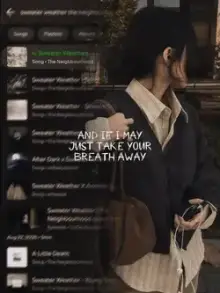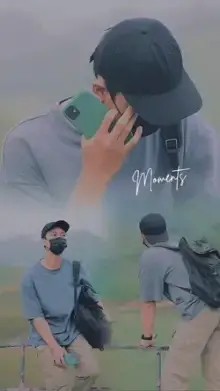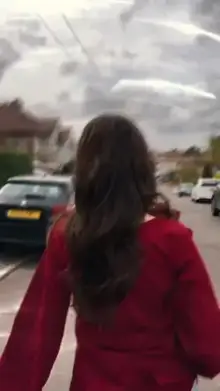






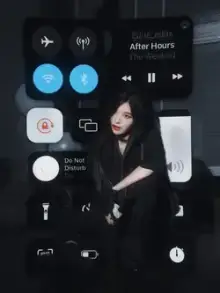

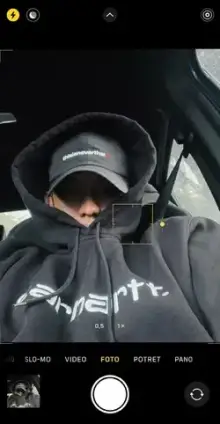
CapCut iPhone templates are edits styled to look like they were shot and edited on an iPhone, with clean, bright color, smooth motion and minimal text, along with templates picked for people who edit on an iPhone. They work like any CapCut template: open the link, tap Use template, add your clips, then export.
What Gives an Edit the iPhone Look?
The "iPhone look" is less about a filter and more about restraint. These are the traits people usually mean:
- True-to-life color Skin tones look natural, whites stay white, and the grade is light.
- Sharp detail Clean, well-lit footage with little grain.
- Smooth, steady movement Slow pans and walking shots without shake.
- Soft background blur The depth effect you get from Portrait or Cinematic mode.
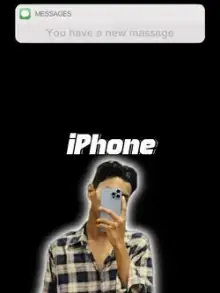
- iOS-style graphics in some templates For example a notification bubble, a lock-screen clock or a camera interface frame.
Templates in this collection lean on these traits rather than heavy effects, which means the quality of your own footage shows through. Clean, well-lit clips make the biggest difference.
Using a CapCut iPhone Template on Your iPhone
- Install CapCut from the App Store, where it is available in your country.
- Open a template page here and hit Use Template in CapCut. If the link opens in Safari instead of the app, look for an Open in app prompt at the top of the page.
- Tap Use template inside the app and select the photos or videos the template needs.
- Preview the result, swap clips or retype the text if needed, then export and save to Photos.
If some of your photos or videos are missing from the picker, you probably gave CapCut limited photo access. Go to Settings, then CapCut, then Photos, and choose Full Access. Labels can differ slightly between iOS versions. Our full template guide covers the rest of the process.
iPhone Camera Settings That Help
| Setting | Where to find it | Why it helps |
|---|---|---|
| 1080p or 4K at 60 fps | Settings, Camera, Record Video | Smoother motion and cleaner slow motion inside templates |
| HDR Video off (only if exports look washed out) | Settings, Camera, Record Video | Some HDR clips look too bright or faded after editing and sharing |
| Grid on | Settings, Camera | Helps you keep the subject centered for 9:16 crops |
| Exposure and focus lock | Press and hold on the subject in the Camera app | Stops the brightness from jumping while you film |
Wipe the lens before every shoot. A fingerprint on an iPhone lens causes the hazy glow around lights that people often mistake for a bad template.
Not on an iPhone?
Android users can use every template on this page. The iPhone-style look comes from the template's color, pacing and effects, not from the phone that runs it. Good light and a steady hand matter far more than the brand. For similar clean looks, try the aesthetic templates or the cinematic templates.
Templatess is an independent site and is not connected with Apple or CapCut. iPhone is a trademark of Apple Inc.
Frequently Asked Questions
Do CapCut templates work the same on iPhone and Android?
Yes, for the most part. A template opens and exports the same way on both, and the edit looks the same. Button names and menu positions may shift slightly from one app version or country to another, but the steps of opening, adding clips, previewing and exporting do not change.
Why do my iPhone clips look too bright or washed out after export?
This is often caused by HDR video. Recent iPhones record HDR video by default, and some HDR clips look overly bright or faded once edited and shared. Turn off HDR Video under Settings, Camera, Record Video, then film again and compare the results.
Why can't CapCut see all my photos on my iPhone?
CapCut probably has limited photo access, so it only sees the photos you picked earlier. Open Settings, tap CapCut, then Photos, and switch to Full Access. Reopen CapCut and the missing photos and videos should appear in the template picker.
Can Android users get an iPhone-style look?
Yes. The look comes from the template's color grade, smooth pacing and clean effects, which work the same on any phone. Shoot in good daylight, keep the camera steady, avoid heavy beauty filters, and your Android clips will match the style closely.