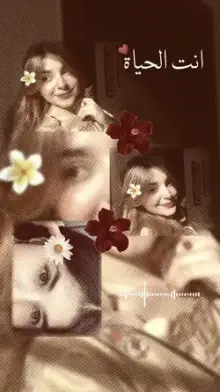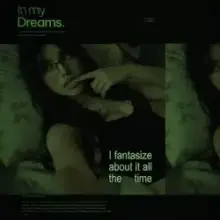

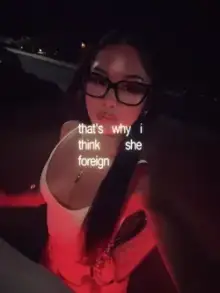








A Fantasize CapCut template is a ready-made edit for the Fantasize trend, where your clips are cut to the trend's audio in a soft, dreamy style. Most versions lean on light glow, warm or pastel tones and slow, smooth movement. You choose the photos or videos, and the template applies the timing, transitions and effects.
What Does the Fantasize Style Look Like?
The name says a lot. To fantasize means to daydream about something you want, and these edits try to look like that feeling: soft, slightly unreal and calm.
- Color Warm highlights, gentle pinks or creams, and lifted shadows.
- Motion Slow push-ins, floaty pans and fades rather than hard cuts.
- Extras Some versions add glow, light leaks, sparkles or a blur that fades in and out.
If you like this look, our aesthetic templates and the glow effect trend are close cousins.
Photos or Videos: Which Work Better?
Both can work. The answer depends on what you have.
Photos are the easy route. The template moves them with zooms and pans, so even still images feel alive. Pick photos with soft light and a similar color mood, so the cuts don't jump from warm to cold.
Videos look richer when they contain slow, natural movement: hair in the wind, a slow spin, a hand brushing flowers, waves on a beach. Avoid shaky or fast clips. The dreamy feel breaks the moment the camera jerks.
Mixing both is common. Put your best video first and use photos to fill the remaining slots. A set from one day or one place usually looks more like a story than random gallery picks, which is why this trend also pairs well with a photo dump edit.
Where the Fantasize Look Works Best
This style shines when the footage already feels gentle. Good matches include:
- Outfit-of-the-day clips and mirror selfies
- Birthday or friends' day-out photo sets
- Travel views, beaches, gardens and sunsets
- Soft couple moments with no fast action
It's a weaker fit for sports, gym or loud party footage. Those clips usually look better in a faster, beat-heavy trend. For more soft edits made with girls' photos and selfies in mind, browse our girls' templates.
How Do I Make a Fantasize CapCut Template Look Dreamy?
- Shoot in soft light. Golden hour, a cloudy day or light from a window gives the gentle glow this trend needs.
- Use clean originals. Pre-filtered or heavily compressed images clash with the template's own color.
- Keep faces in the center. CapCut templates are usually vertical 9:16, so wide shots get cropped at the sides.
- Stay consistent. Similar outfits, colors or places across clips make the edit feel planned.
- Make the text yours. If the version includes text, open the text option in the editor and write your own words.
- Think about order. Start with a wide, calm shot and end on your best close-up, so the edit feels like it's drifting toward you.
One more habit worth building: shoot a few extra seconds before and after each moment. Dreamy edits often use the slow start of a clip, and those spare seconds give the template room to breathe.
Quick Walkthrough
Pick a card from the grid, open its page and check the preview, clip count and duration. Tap "Use Template in CapCut" to open it in the app, or on capcut.com from a computer. On a laptop, the QR code button lets you open it on your phone instead: scan it with your phone camera or Google Lens.
In CapCut, tap "Use template," pick your media, preview it, swap anything that looks off, then export. Labels may differ slightly depending on your app version and region. For a detailed look at each screen, read how to use a CapCut template.
Tip: if a dreamy edit starts to look muddy, the cause is often too many dark clips. Swap one or two for brighter shots and the whole video lifts.
Frequently Asked Questions
What is the song in the Fantasize CapCut template?
The trend is named after the audio it uses, but templates can differ in which part or version of the sound they include. We don't list song credits we can't confirm, so play the preview on each template page to hear the exact audio before you use it.
Is the Fantasize template good for girls' edits?
Yes, it suits selfies, outfit shots and soft aesthetic edits, but anyone can use it. The dreamy style fits any calm, pretty footage, including travel views, flowers or sunset clips. For more options in this mood, browse our girls and aesthetic categories.
Can I change the text in a Fantasize template?
In most versions, yes. After you pick your clips, look for the text option in the template editor, tap the words and type your own. Some templates build their text into the design, and in that case it can't be changed.
Why do my photos look pixelated in the edit?
Low-resolution images, screenshots and photos saved from social apps lose detail when the template zooms in on them. Use the original photo from your camera roll, and pick 1080p if the export screen offers resolution options, for a cleaner result.
Can I use a Fantasize template for a birthday post?
Yes, the soft style suits birthday photo sets well. Choose a few bright, happy photos of the person, keep the best one for the last slot, and add their name if the version has editable text. For more party-style options, see our birthday templates.