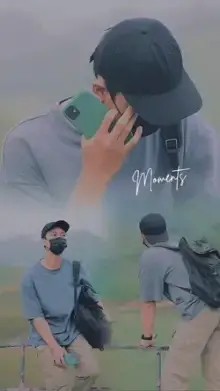
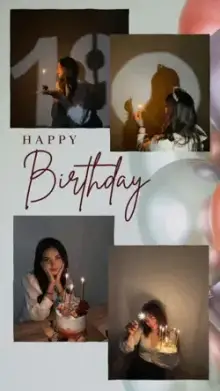
Krishna Editz CapCut templates are ready-made edits credited to the Krishna Editz creator name on CapCut. Each template has a fixed length, music and set of transitions. You fill its slots with your own photos or videos, check the preview and export a short vertical video that is ready to post.
Prepare Your Media First
Most frustration with templates comes from hunting through a full gallery halfway through an edit. Do this first:
- Check the clip count on the template card, for example 6 clips.
- Pick a few extra photos or videos, so you have backups.
- Put them in one album on your phone, so they're easy to find in CapCut's media picker.
- Decide the order you want them to appear in. Templates fill slots in the order you select your media.
Photos or Videos: What Works Best?
| Media | Best for | Watch out for |
|---|---|---|
| Photos | Fast beat edits, birthday and memory edits | Screenshots and compressed images look soft |
| Videos | Slow motion, walking and action edits | Shaky footage and dark scenes |
| Mixed | Story-style edits | Keep light and colors similar across clips |
Vertical 9:16 media fits best, since almost all templates are made for phone screens. For photo-heavy edits, browse our CapCut photo templates.
From Album to Export: Using a Krishna Editz CapCut Template
Tap "Use Template in CapCut", then "Use template" in the app. Open your album, select your media in order and preview. Swap any weak clip before exporting. Button names can vary by version, so the CapCut template guide is handy if something looks different.
Following Krishna Editz on CapCut
Search "Krishna Editz" in CapCut's Templates tab, open a template and tap the creator name to reach the profile. Follow it to catch new uploads. The templates and credit belong to the creator; this is an independent collection with no link to Krishna Editz or CapCut. For more current edits, see trending templates.
Frequently Asked Questions
Should I use photos or videos in a Krishna Editz template?
Use whatever the template's preview suggests. Fast beat edits often work well with photos, while slow motion or walking edits need video clips. Most templates accept either, but the result looks best when your media matches the style of the preview.
Why do my photos look blurry in the template?
Blurry results usually come from small or compressed images, such as screenshots or photos saved from chat apps. Use the original photo from your camera roll instead, and choose 1080p when exporting if your phone offers it.
How do I find all Krishna Editz templates?
Search "Krishna Editz" in the Templates tab in CapCut and follow the creator's profile from one of their templates. Our page also collects templates credited to that name. No list stays fully complete, because creators add and remove templates over time.
Is Krishna Editz connected to this website?
No. We are an independent site that credits and links to templates made under the Krishna Editz name. We are not the creator, we have no partnership with them, and we are not affiliated with CapCut.