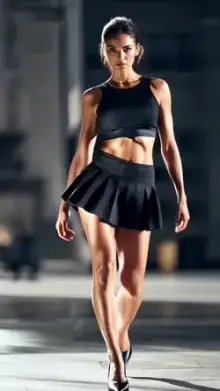






A neon slow motion CapCut template is a ready-made edit that combines slow-motion playback with glowing neon effects, such as a bright outline traced around the person, light streaks or color flashes on the beat. You add your clip, and the template applies the speed changes, glow and music automatically.
How the Neon Effect Works in These Templates
Many neon versions use an effect that finds the person in the frame and draws a glowing line around their body. The line follows your movement, so a slow turn or walk leaves a smooth trail of light behind it.
Other versions skip the outline and use neon light leaks, glowing edges across the whole frame, or quick color flashes that land on strong beats. Plenty of them mix two or three of these.
When an effect has to detect a body, it works best if you clearly stand out from the background. That one fact explains most good and bad results with this trend, and it shapes every tip below.
What Footage Gives the Best Neon Glow?
- A clear subject One person, full body or waist up, with some space around them.
- A simple background A plain wall, an empty street or open sky. Busy patterns can confuse body detection.
- Contrast Dark clothes against a light background, or the reverse, help the outline stay clean.
- Evening or indoor light Neon colors look stronger when the scene isn't washed out by bright sun, but the subject still needs light on them.
- 60fps recording The slow-motion parts stay smooth, and the glowing line moves without stutter.
- Slow, wide movement Arm swings, spins, jumps and walks give the glow something to trace.
Neon vs Regular Slow Motion: Quick Comparison
| Feature | Neon slow motion | Regular slow motion |
|---|---|---|
| Main look | Glowing outlines, light trails, color flashes | Natural colors, cinematic grade |
| Best setting | Evening, indoors, plain backgrounds | Daylight, scenic places |
| Best clips | Full-body moves, spins, dance steps | Walks, close-ups, hair and fabric movement |
| Mood | Party, music video, gaming | Calm, romantic, attitude |
If you prefer the natural look, browse our slow motion templates or the slow motion walk trend. For glow without the slow-down, try the glow effect templates.
Shot Ideas That Suit Neon
Neon rewards movement with a clear shape. A few ideas that tend to look good:
- A slow spin with your arms out
- A jump captured at its highest point
- A walk toward the camera under street lights
- A simple dance step or hand wave
- A bike or skateboard rolling past slowly
Keep each move simple. One clear action reads far better with a glowing outline than a lot of small, fast gestures.
What you wear matters too. Plain, dark clothes make the glow pop, while an outfit that matches the background color gives the outline no clear edge to follow. Film three or four takes of each move, since the effect can look different from one take to the next.
Which Neon Version Should I Pick?
Colors change the mood more than you might expect. Use the previews to match the glow to your clip:
- Blue and purple Night city, cars and calm, moody clips.
- Pink and red Party, birthday and dance clips.
- Green and yellow High-energy sports or gaming-style edits.
- Multi-color flashes Beat-heavy music and quick moves.
If two versions look similar, compare their clip count and duration on the template pages and pick the one that matches the footage you already have.
How Do I Use a CapCut Slow Motion Template With Neon Effect?
- Choose a version above and open its template page. Watch the preview to see how the glow behaves.
- Check the clip count and duration, then film or pick clips that match.
- Tap "Use Template in CapCut." On a computer, you can scan the QR code with your phone camera or Google Lens instead.
- In CapCut, tap "Use template," select your clips and give the effects a moment to load. If the screen stays black, see our black screen fix.
- Watch the preview closely. If the outline flickers or disappears, swap in a clip with a cleaner background.
- Export, then save or share the video.
Menu labels may vary with app version and region. For a fuller walkthrough, read our guide on using CapCut templates.
Export Tips That Keep the Glow Clean
Neon effects combine thin, bright lines with dark areas, and that mix suffers badly from heavy compression. If the export screen offers resolution choices, pick 1080p.
Avoid sending the video to yourself through a messaging app before you post it, because each round of compression makes the glow look blocky. Upload the exported file straight to Reels, Shorts or TikTok instead.
Frequently Asked Questions
What is the neon effect in CapCut slow motion templates?
It's a glowing light effect added on top of slowed-down video. In many versions it traces a bright outline around the person; in others it adds light streaks or color flashes on the beat. The template applies it automatically when you add your clips.
Why isn't the neon outline showing on my video?
The effect probably can't find a clear person in your clip. Use footage where one person stands out from a simple background, with decent light on them. Crowds, very dark scenes and busy patterns often make the outline flicker or vanish.
Can I change the neon color in the template?
Usually not inside the template itself. The colors are set by the creator, and template editing mainly lets you swap clips and text. If you want a different color, pick another version from the grid whose preview already shows the shade you like.
Is the neon slow motion template good for night videos?
It works well in the evening, but very dark clips cause problems. Neon colors pop against a dim background, yet the person still needs enough light for the effect to detect them. A street lamp, a shop sign or a phone light on the subject is usually enough.
Can I use a neon slow motion template for dance videos?
Yes, dance is one of the best fits, because big, clear moves give the glowing effect plenty to trace. Choose simple steps, film your full body with space around you, and record at 60fps so the slowed parts stay smooth. Crowded group dances can confuse the effect.
Do neon templates work on older phones?
They can, but effects like body outlines need more processing power, so loading and export may be slower. Close other apps, keep CapCut updated and free up some storage. If the preview stutters, the exported file often still plays smoothly.