About This Template
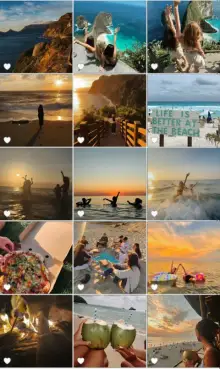
Take a picture is a photo dump, photo CapCut template made by Khairunnisa (LS). The finished video is about 5 seconds long and the template asks for 14 clips (photos or videos). It has been used about 10.4K times on CapCut, so it is a proven edit for Reels, Shorts and TikTok. Tap “Use Template in CapCut” to open it in the app, add your clips and export.
How to Use the Take a picture Template
- 1
Open the template
Tap “Use Template in CapCut” above. On a computer, click “QR code” and scan it with your phone.
- 2
Tap “Use template”
CapCut opens the template page. Tap the Use template button at the bottom.
- 3
Pick 14 photos or videos
Choose clips in the order you want them to appear — this template needs 14. Vertical 9:16 clips look best.
- 4
Preview and edit
Watch the preview, tap a clip to replace or trim it, and change any text.
- 5
Export and share
Tap Export, choose the quality and save the video or share it to Instagram, TikTok or YouTube Shorts.
Need more help? Read our full guide on how to use CapCut templates or the black screen fix.
Questions About This Template
How do I use the Take a picture CapCut template?
Tap “Use Template in CapCut” on this page. The template opens in the CapCut app (or on capcut.com on a computer). Tap “Use template”, pick 14 photos or videos it asks for, preview the edit and tap Export.
Is the Take a picture template free?
Most CapCut templates are free to use. A few use CapCut Pro effects; if that is the case, CapCut shows a Pro label before you export.
The template link is not opening. What should I do?
Update CapCut to the latest version, check your internet connection and try the backup link. If you are on a computer, scan the QR code with your phone. CapCut is not available in every region, so links may not open in some countries.